Image clarity explained

Unblur image: understand the limits first

This guide explains blur and upscale options. Supavisual has no dedicated unblur tool: its 2×/4× upscale enlarges images but cannot reliably recover lost detail. Sign-in and a paid subscription are required for AI use.

Independent guide 2×/4× upscale option Login and paid AI plan
Unblur vs upscaleLink-only handoff

Upscale is not unblurring

No upload or prompt is accepted here. The link opens Supavisual’s home page; sign in, choose an available image tool, and subscribe before AI processing.

No dedicated deblur/sharpen tool · No free generation

Illustrative image types — not processed results

Illustrative portrait, not an unblur resultPortrait
Illustrative wildlife image, not an unblur resultWildlife
Illustrative landscape, not an unblur resultLandscape
Illustrative product image, not an unblur resultProduct

Where does image clarity matter?

These are illustrative image-quality examples, not outputs processed by this site or verified Supavisual before/after results.

Sharp studio product photo of a blue vehicle with defined reflections and clean edges.
Soft studio product photo of a blue vehicle with hazy reflections and softened edges.
Illustration AIllustration B

E-commerce product and marketing

Check real product edges, color, and labels before publishing; AI enlargement can alter detail.

Crisp northern lights landscape prepared for a large-format print.
Soft northern lights landscape with hazy stars and distant shoreline.
Illustration AIllustration B

Image printing and enlargements

Upscaling increases dimensions, but cannot guarantee natural detail or print suitability. Compare the output at final size.

Detailed architectural concept drawing with crisp lines and layered visual elements.
Soft architectural concept drawing with faint lines and washed details.
Illustration AIllustration B

Design and visual projects

Never treat invented-looking edges or letters as recovered facts. Keep the source image for review.

Bright social media lifestyle photograph of friends with crisp faces and colorful clothing.
Soft lifestyle photograph of friends with motion blur and muted details.
Illustration AIllustration B

Social media

Preview social images at posting size; heavy blur or camera shake may need a different source image.

What to know 1

Sharpening is not guaranteed restoration

This site has no image processor. Supavisual offers 2×/4× upscale but no dedicated sharpen/deblur tool; never assume lost information returns.

Sharp mountain lake scene with layered evergreen forest, cabin, and reflective water.
Soft mountain lake scene with hazy evergreen forest, cabin, and reflective water.
Illustration AIllustration B
What to know 2

Blurred details can remain unknowable

Severe motion blur and missed focus cannot reliably reveal original eyes, lettering, or edges. Try a sharper original or a dedicated restoration editor for that task.

Detailed illustrated portrait with silver hair, vivid blue eyes, and crisp linework.
Soft illustrated portrait with silver hair, hazy blue eyes, and indistinct linework.
Illustration AIllustration B
What to know 3

2×/4× upscale for image size

Supavisual offers 2× and 4× upscale after login and subscription. More pixels do not prove the output contains real source detail; check text and fine textures.


Cinematic ocean scene with two figures on a ship deck rendered with crisp sunset detail.
Soft cinematic ocean scene with two figures on a ship deck under a muted sunset.
Illustration AIllustration B
What to know 4

Background removal is a different task

Supavisual can remove backgrounds from source images. It does not make a blurry face, label, or product detail authentic.

Sharp close portrait of a young deer with warm fur and alert eyes in a green woodland.
Soft close portrait of a young deer with hazy warm fur and indistinct eyes in woodland.
Illustration AIllustration B
What to know 5

Compare against the untouched original

An AI edit can invent texture or change text. Preserve the original and check the result before sharing or printing.

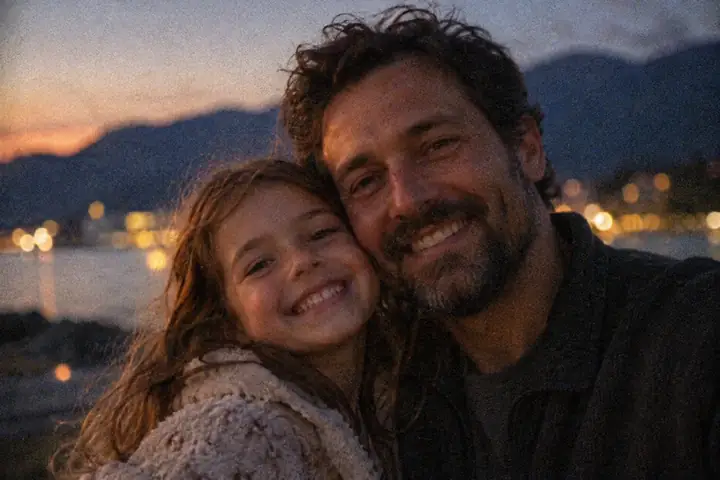
Clear family portrait of a father and daughter smiling together in bright outdoor light.
Noisy family portrait of a father and daughter smiling together in dim outdoor light.
Illustration AIllustration B

How to check a soft image honestly

No image is processed on this site. The steps below explain what you can check before using Supavisual for upscale or background removal.

01

Keep your best original

Keep the largest source file, then follow the destination’s sign-in and upload workflow.

02

Choose a supported tool

Supavisual offers 2×/4× upscale and background removal, not an unblur or sharpening control. AI work requires a paid subscription.

03

Compare any edited output

Inspect faces, labels, and textures at the same zoom as the source. Enlarging is not factual recovery.

Which image task matches your goal?

The Supavisual handoff offers only its published workflows; the tool names below do not refer to products owned by this site.

Background removal

Isolate a subject from its background. This is not a watermark remover or a method for reconstructing blurred information.

Explore background removal

2×/4× Upscale

Increase image dimensions with Supavisual’s upscale tool. Check fidelity and never assume original detail has been recovered.

Upscale images

Resize images

Resize an image for its destination. Exact object removal or text repair is not promised by this link.

Explore resizing

Questions to ask before using any AI image tool

This guide does not collect reviews or process images. Keep original files and verify results with your own images.

A larger image can still show blur. Compare it with the untouched source at the same viewing size.

A generated detail may look plausible without proving what the camera actually captured.

Do not rely on AI to recover unreadable lettering, identifying marks, or important document text.

For severe blur, look for a different frame or reshoot instead of promising restoration.

Frequently asked questions

Here are some of the most common questions about Unblurimage.

Is UnblurImage AI really free?
No. This site is a guide, not an image processor. Supavisual requires sign-in for uploads and an eligible paid plan to use AI tools.
Can UnblurImage AI handle high-resolution images?
Supported image dimensions and file limits can vary by tool. The destination will show the current requirements before you upload.
Does it support batch removal of image blur?
Supavisual has a batch entry point, but no dedicated blur-removal job or promise of bulk exports. Check current limits there.
Will your program damage the image quality?
AI edits can invent texture or alter small text. Keep the original and check any output before relying on it.
Can it remove blur from videos?
No video deblurring is offered by this link. Supavisual’s image tools and video workflows are separate.
Is there a file size limit?
Yes, upload limits can differ by format and tool. The current supported limits are shown when you continue to the destination.
Does this site have an Unblur Pro plan?
There is no Unblur Pro product here. Review Supavisual’s current subscription terms for its actual image workflows.
Explore image upscaling